

Searching for skilled automotive professionals?

Find the right talent for your business.

Learn more

01234 240 503

  • Facebook
  • Instagram
  • YouTube
  • LinkedIn
  • Academy
  • Training
  • Connect
  • Group
  • About us
  • Blog
  • Contact Us
  • Log In
Autotech Recruit
  • Home
  • Job Search
  • Job roles
    • MOT Tester / Vehicle Technician
    • Workshop Manager
    • Parts / Service Advisor
    • Paint & Body
    • Other Automotive Roles
  • Contracting
  • Permanent
  • Testimonials
  • Register CV
  • About us
  • Blog
  • Contact Us
  • Login
  • ACADEMY
  • TRAINING
  • CONNECT
  • GROUP

Autotech Recruit

Pages

home > docs > pages

Modules

  • Global Settings
  • Pages
  • Posts
  • Media
  • Menus
  • Blocks
  • Patterns
  • Job Roles
  • Job Types
  • Case Studies
  • Resources

Pages

Create, edit and organise pages.


Contents

  • Overview
  • Creating pages
  • Editing pages
  • Searching pages
  • Deleting pages
  • Page status
  • Page featured image
  • Page audience type
  • Page SEO
  • WordPress Docs

Overview

Pages are the main areas for your site’s content, they are composed of blocks and patterns. This section covers the basics of creating, editing, organising and deleting pages.


Creating pages

To create a page, select the ‘Add New Page’ link under Pages in the admin sidebar or the ‘Add New Page’ button top left of the admin page for pages.
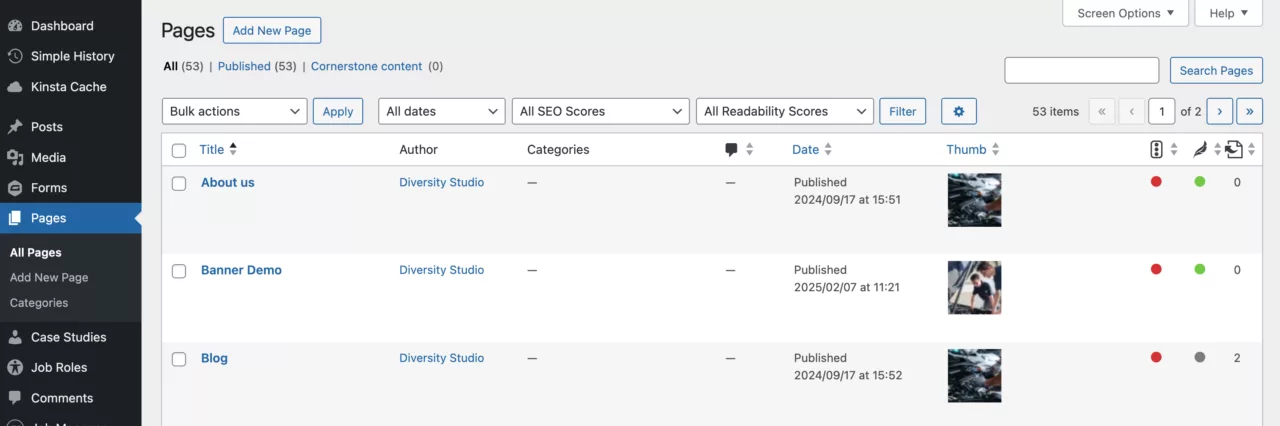
Pages admin page (select to enlarge)

Alternatively you can use the ‘+ New’ shortcut dropdown link in the admin toolbar to add a new page.
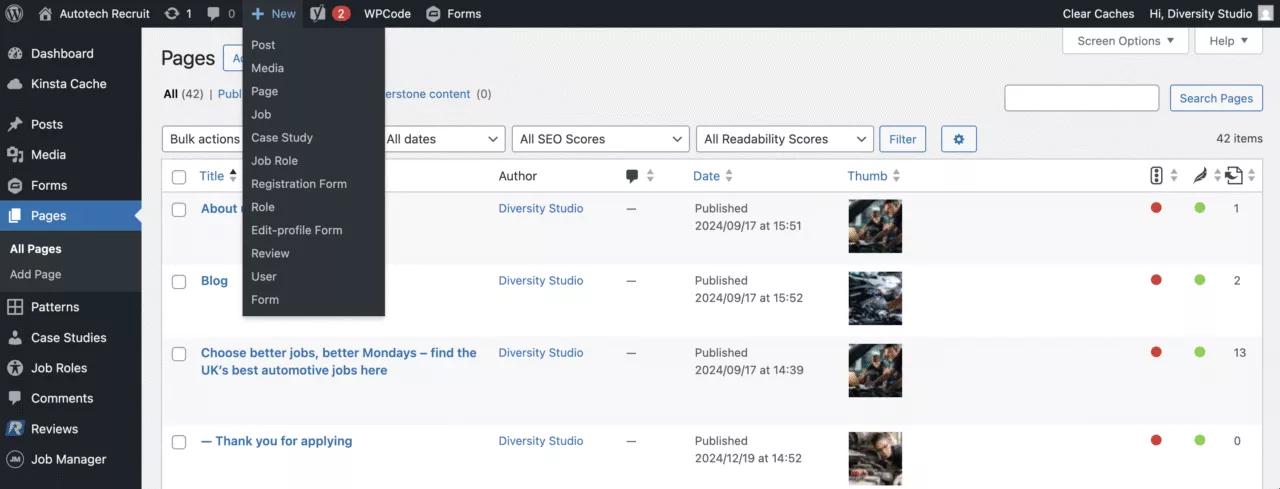
‘+ New’ shortcut dropdown (select to enlarge)

Initially, title your page using the title field at the top of the edit screen, then select the ‘Save draft’ link so you can work on the page content later, sections blocks and patterns dive deeper into the building blocks for your content.
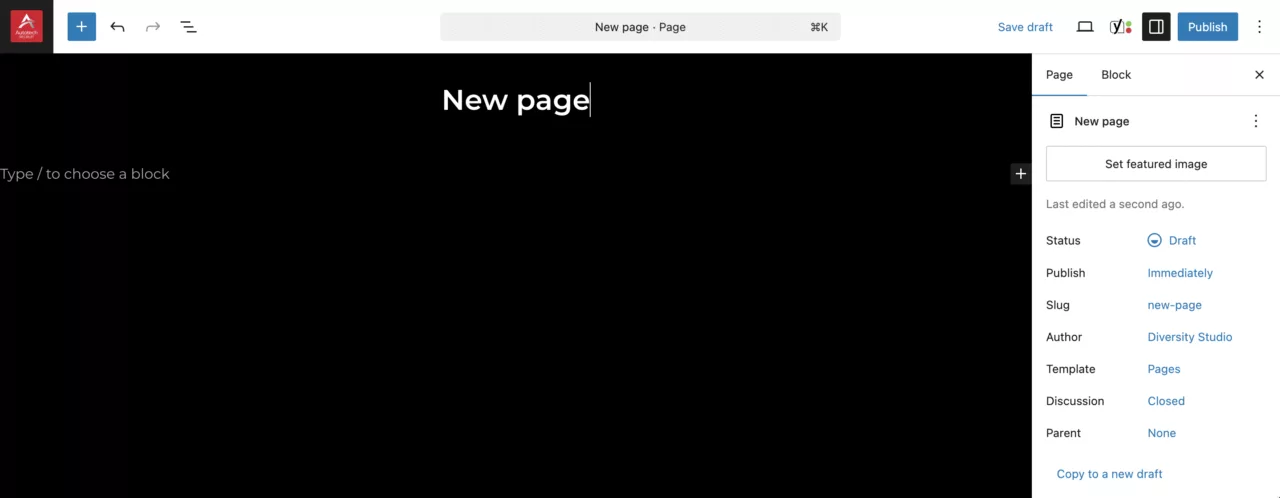
New page edit screen (select to enlarge)
Open Pages

Back to contents


Editing pages

To edit a page, select the ‘Edit’ or ‘Quick edit’ when hovered or select the page title to go to the page edit screen.
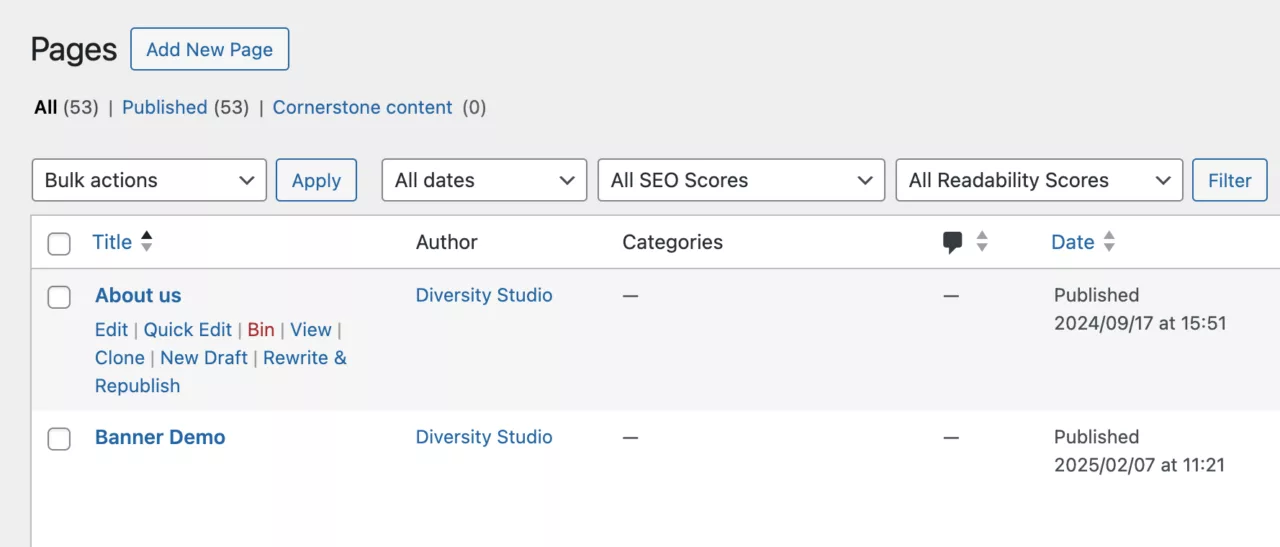
Pages admin page showing hover options (select to enlarge)
Open Pages

Back to contents


Searching pages

To search a page, use the search form entering keywords that could be part of the title or page content.
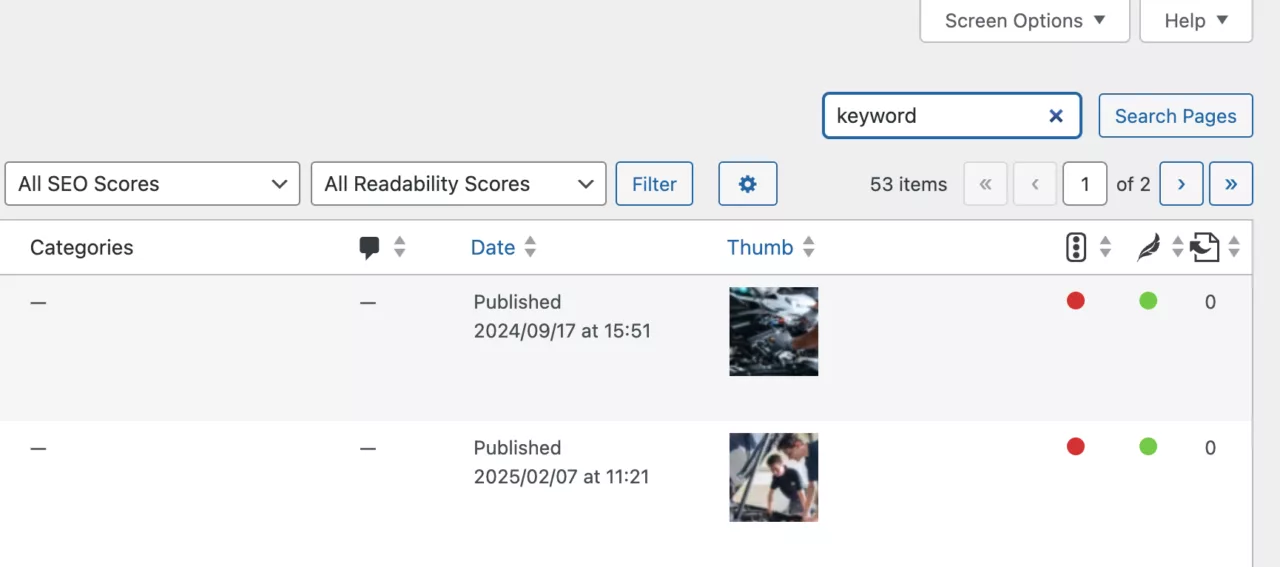
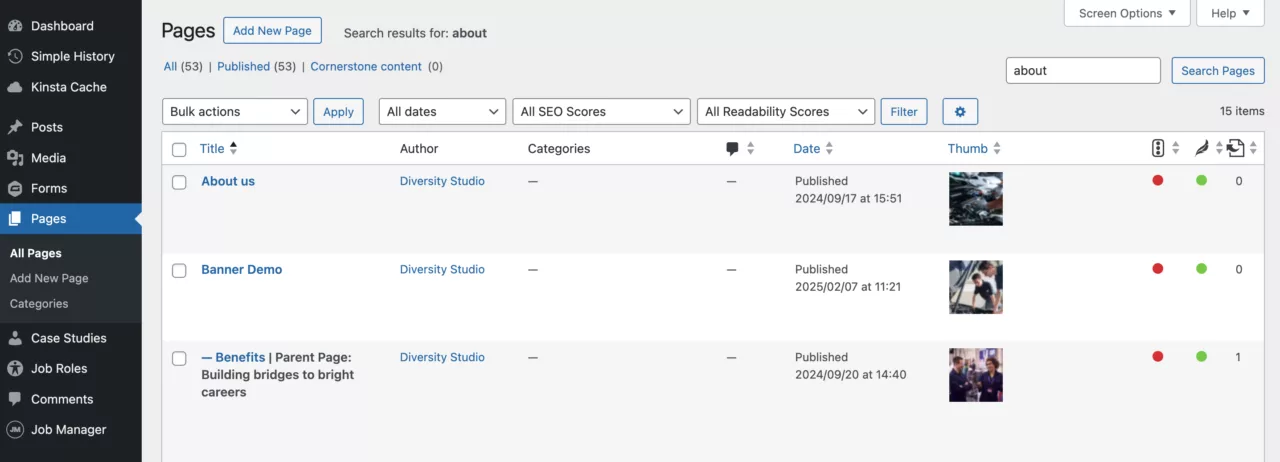
Pages search form (select to enlarge)
Example search for the keyword ‘about’ (select to enlarge)
Open Pages

Back to contents


Deleting pages

To delete a page, select ‘Bin’ when hovering a page or use the Bulk actions dropdown when the page is checkedboxed.
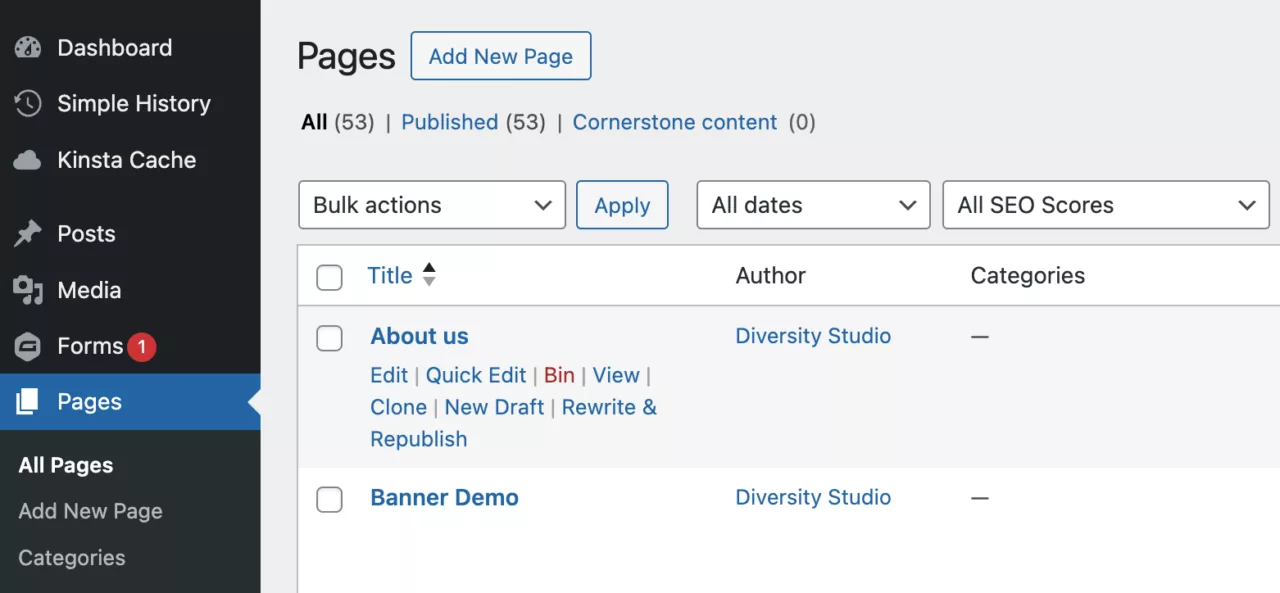
Pages hover options showing ‘Bin’ (select to enlarge)

To permanently delete a page, select ‘Empty Bin’ button when the pages are filtered using the ‘Bin’ filter.
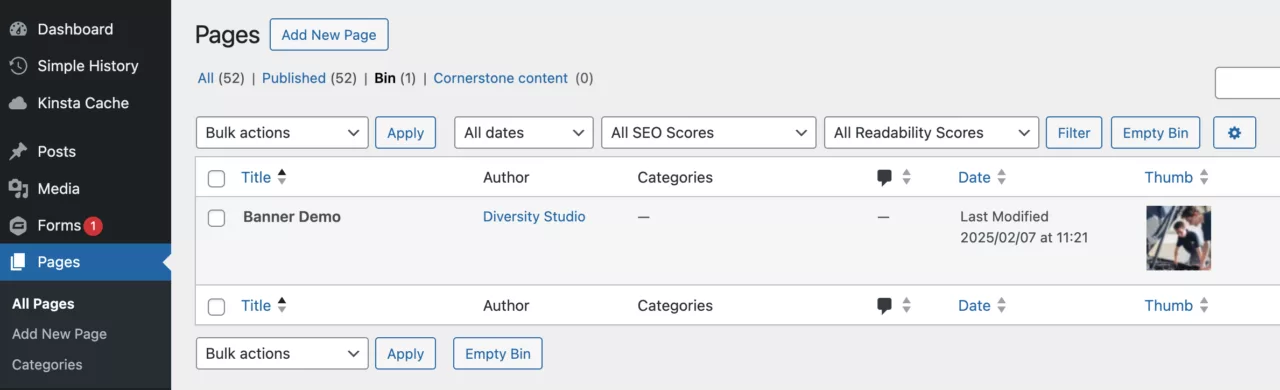
‘Empty Bin’ button for permanent deletion of a page (select to enlarge)
Open Pages

Back to contents


Page status

To change the status of a page, select the ‘Status’ popout from the right sidebar.
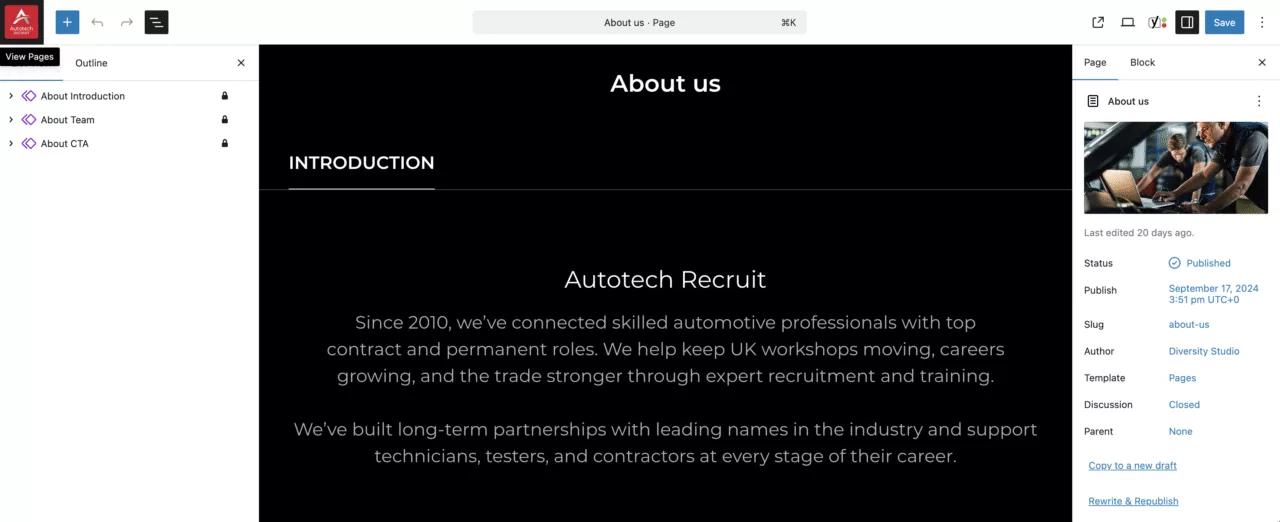
Page settings module (right sidebar) (select to enlarge)

Page status options include:

  • Draft
  • Pending
  • Private
  • Scheduled
  • Published
  • Password protected

See screenshot below for status descriptions, predominantly you will switch between Draft and Published and maybe Schedule time-sensitive pages.
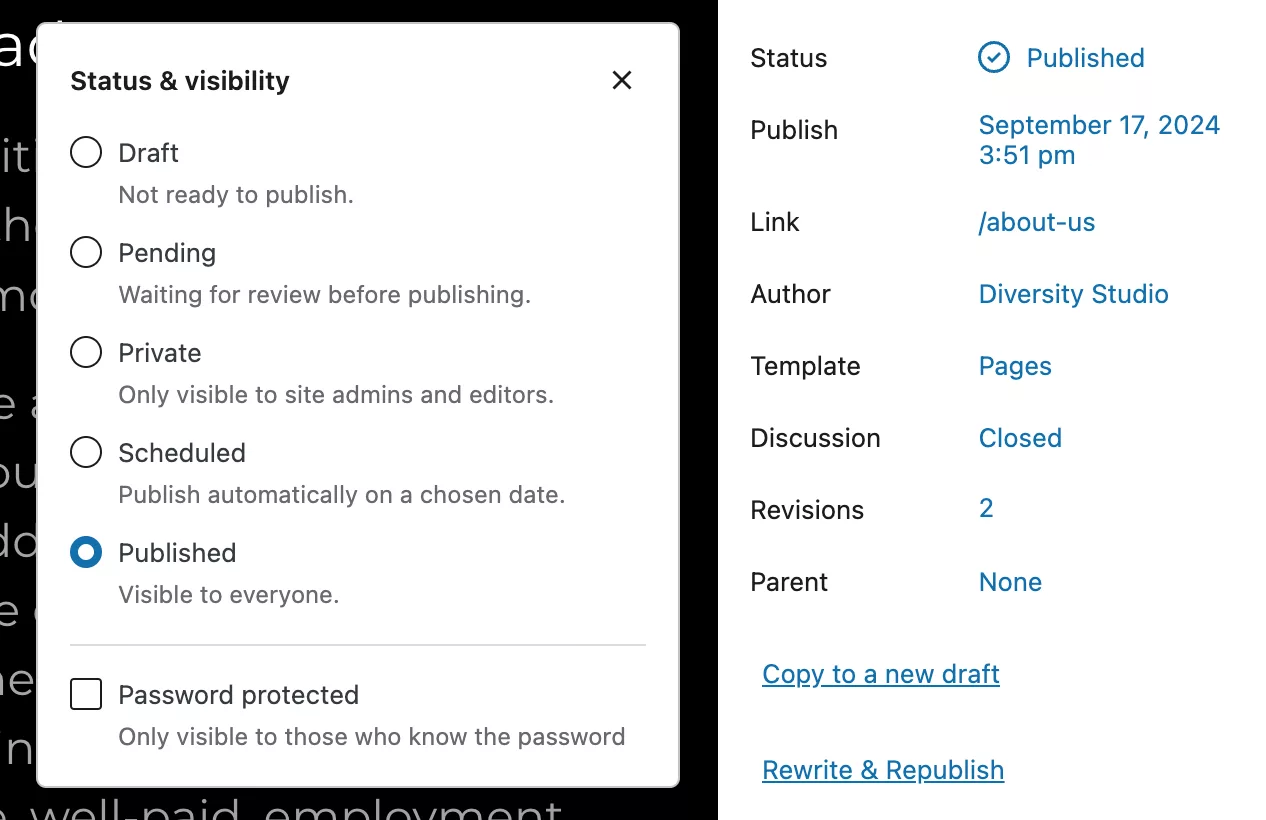
Status popout with descriptions (select to enlarge)
Open Pages

Back to contents


Page featured image

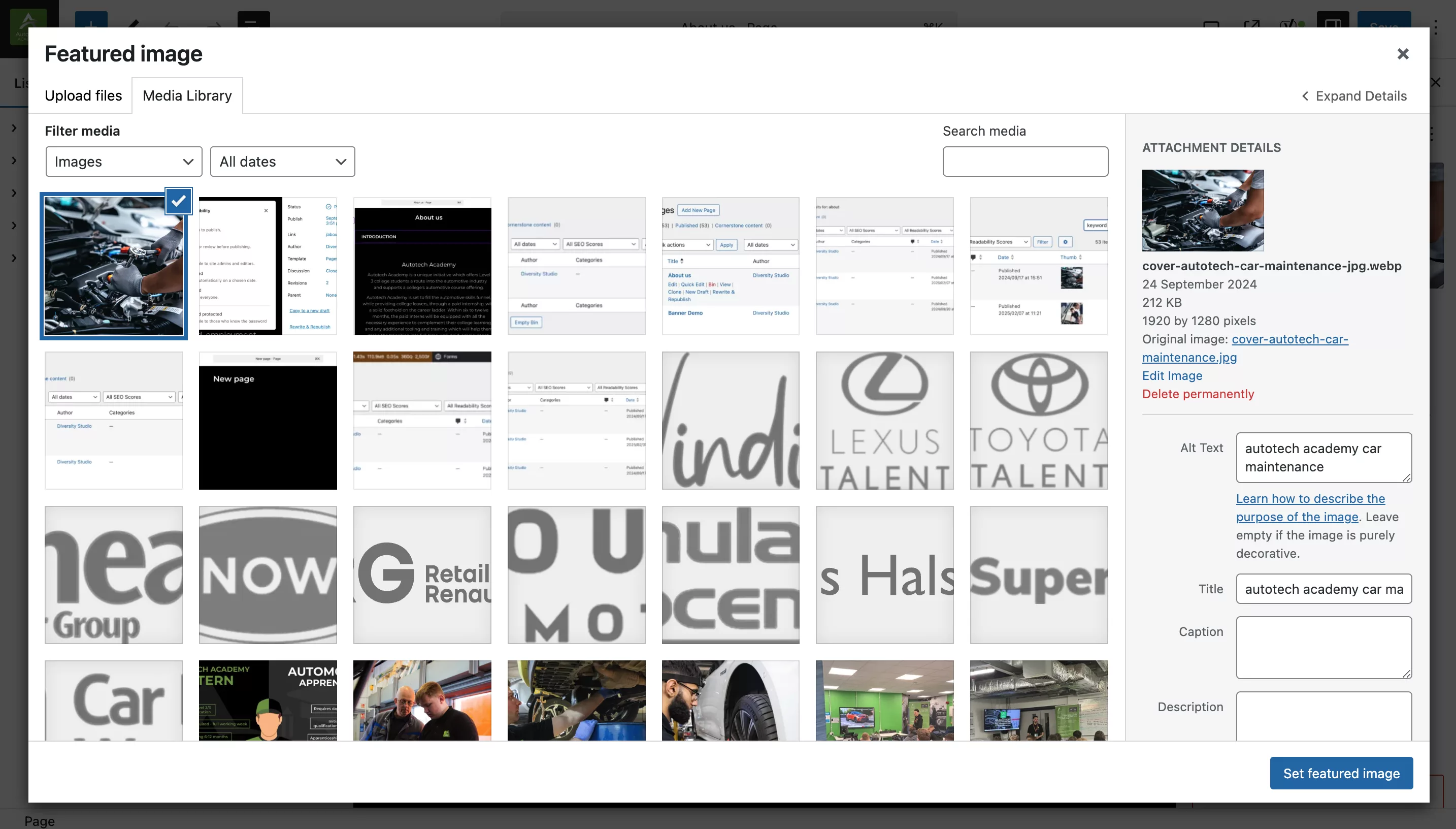
To set/change the page’s featured image, select the image thumbnail within the Page module (right sidebar) – this will open up the media library modal where you can upload or select an existing image from the media library.

Optimise images to the ideal resolution of 1920 x 1080 pixels (HD) at a 72dpi pixel resolution, JPGs are prefered for full colour images where PNGs are prefered for diagrams and flat-colour graphics.
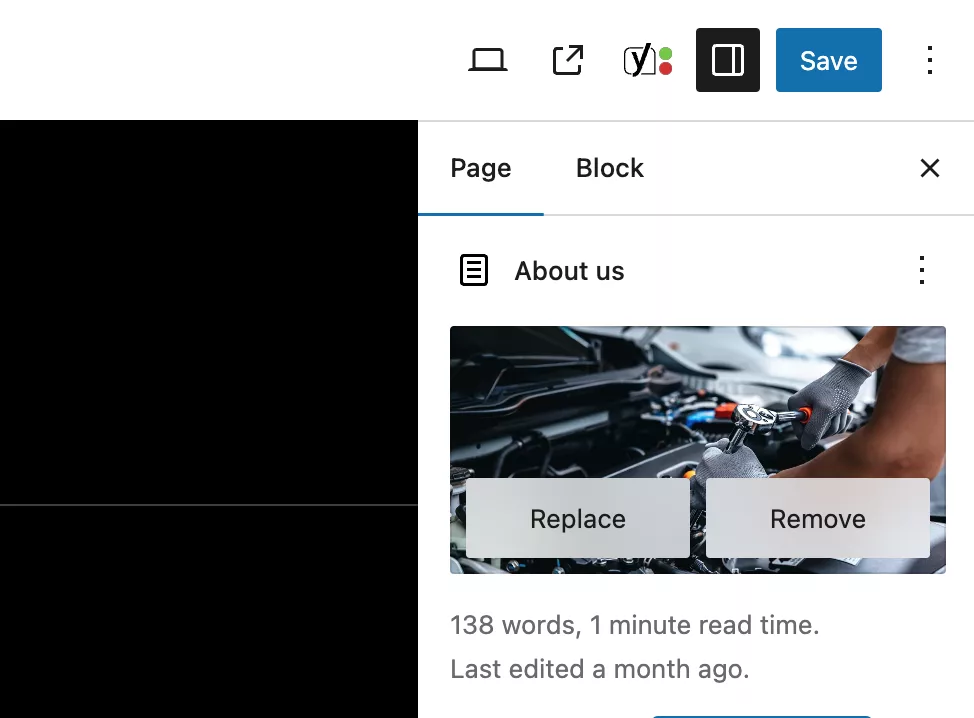
Page featured image settings (right sidebar) (select to enlarge)
Media library modal (select to enlarge)
Open Pages

Back to contents


Page audience type

To set the pages audience type (categorisation) – select the dropdown from the page right sidebar (bottom) – the audience type can be used to segment/filter pages with segmented or targeted content, for example; CTA’s or campaign banners.
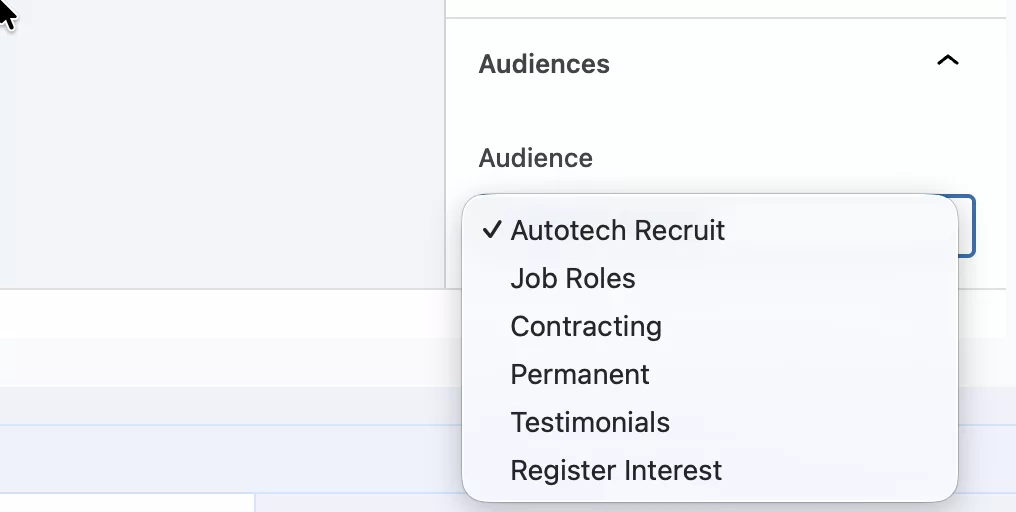
Page audience types (right sidebar) (select to enlarge)
Open Pages

Back to contents


Page SEO

To set the pages SEO (Search Engine Optimisation) – select the ‘Yoast SEO’ module at the bottom of the edit screen. Here you can edit the SEO meta fields.
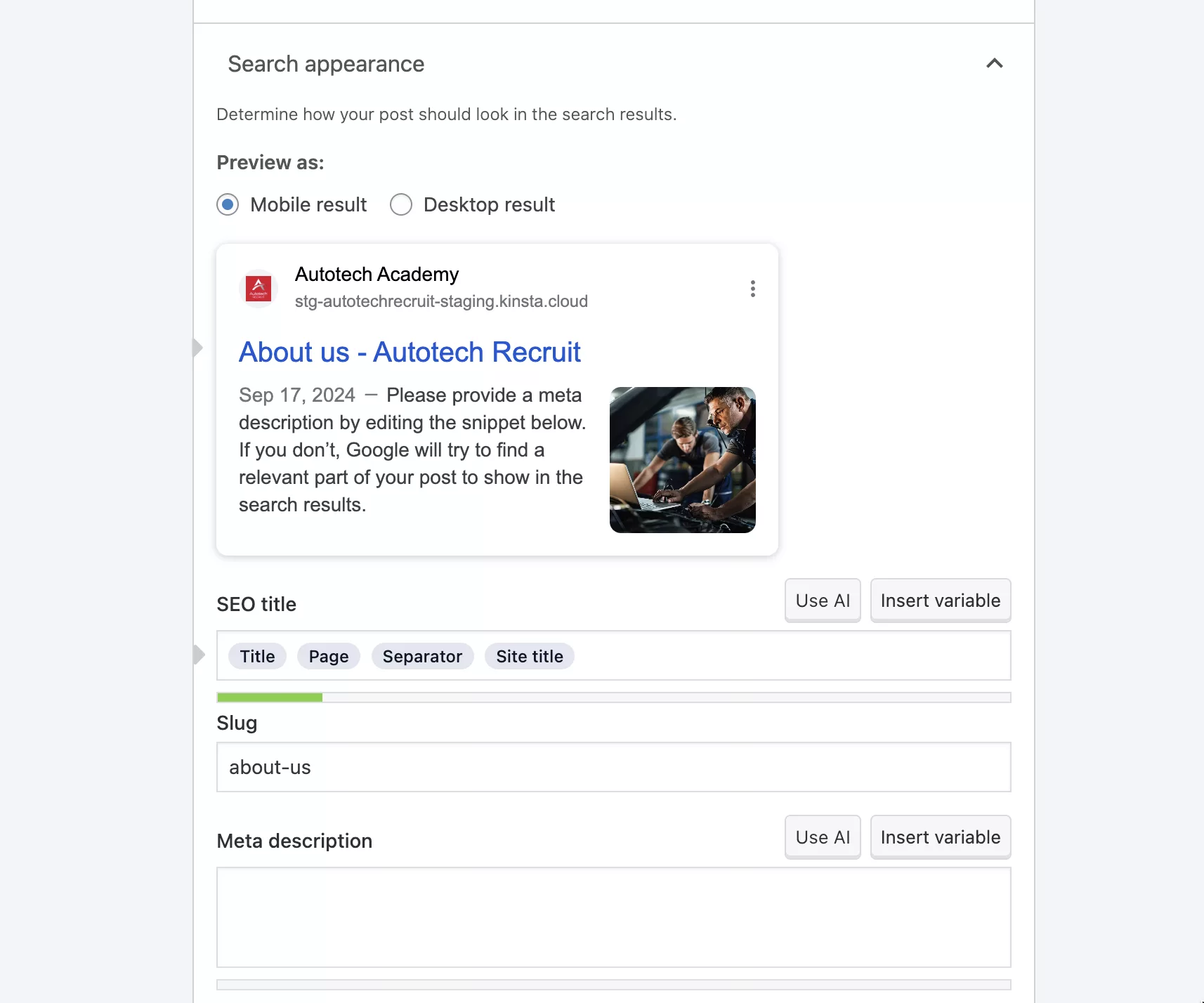
Page ‘Yoast SEO’ module (bottom) (select to enlarge)
Open Pages

For in-depth documentation on how to use Yoast SEO plugin, refer to their online help selecting the button link below:

Open Yoast SEO Help Center

Back to contents


WordPress docs

For further in-depth documentation — wordpress.org/documentation/article/create-pages/

Back to contents


Autotech Recruit
  • Facebook
  • Instagram
  • YouTube
  • LinkedIn

Autotech Recruit

Autotech Recruit specialises in providing experienced vehicle technicians, MOT testers, service advisors and parts advisors on a temporary or permanent basis to the automotive aftermarket.

Trusted by a wide range of clients including dealerships, national retail groups, independent garages, and government organisations throughout the UK, we are your partner in aftermarket talent.

Autotech Recruit is part of Autotech Group, which also includes Autotech Training, Autotech Academy, and Autotech Connect.

Contact

Libra Building
Linford Wood Business Park
Sunrise Parkway
Milton Keynes
MK14 6PH

01234 240 503

hello@autotechrecruit.co.uk

Links

  • Privacy Policy
  • Cookie Policy
  • Terms and Conditions
  • Autotech Group Jobs

© 2026 Autotech Recruit Limited. Registered in England and Wales – Company Registration: 07463246 VAT Registration Number: GB110 7561 49

All Rights Reserved. Autotech Recruit is a registered trademark.
Calls may be recorded for monitoring and training purposes.

WE KEEP THE WORLD MOVING

Chat Assistant