

Searching for skilled automotive professionals?

Find the right talent for your business.

Learn more

01234 240 503

  • Facebook
  • Instagram
  • YouTube
  • LinkedIn
  • Academy
  • Training
  • Connect
  • Group
  • About us
  • Blog
  • Contact Us
  • Log In
Autotech Recruit
  • Home
  • Job Search
  • Job roles
    • MOT Tester / Vehicle Technician
    • Workshop Manager
    • Parts / Service Advisor
    • Paint & Body
    • Other Automotive Roles
  • Contracting
  • Permanent
  • Testimonials
  • Register CV
  • About us
  • Blog
  • Contact Us
  • Login
  • ACADEMY
  • TRAINING
  • CONNECT
  • GROUP

Autotech Recruit

Blocks

home > docs > blocks

Modules

  • Global Settings
  • Pages
  • Posts
  • Media
  • Menus
  • Blocks
  • Patterns
  • Job Roles
  • Job Types
  • Case Studies
  • Resources

Blocks

Explore the building blocks to all layouts.


Contents

  • Overview
  • Building with Blocks
  • Common Blocks

Overview

Blocks are the building blocks for a webpage’s content structure, representing data, like text and media. Blocks can be abstracted into Patterns, groups of blocks to form a section or component of a webpage.
View complete list of WordPress BLocks

Back to contents


Building with Blocks

Blocks are added to any page or pattern via the Block Inserter tool, which is found top left in the editor’s top toolbar.
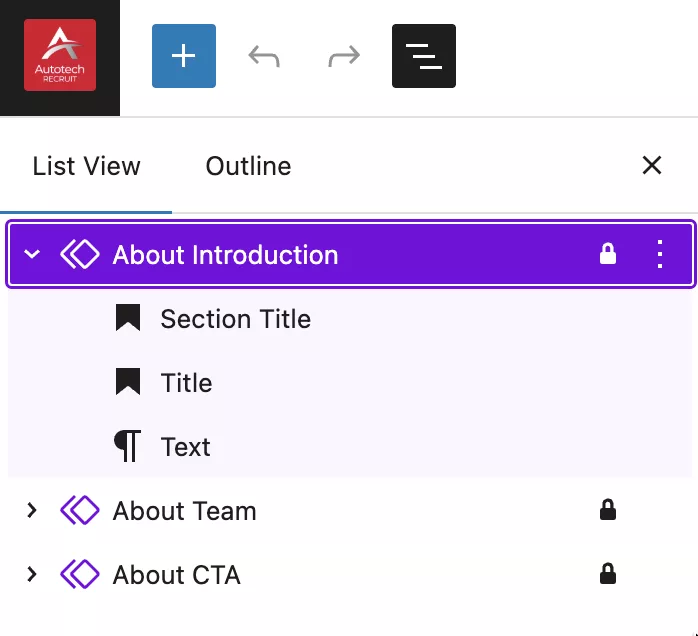
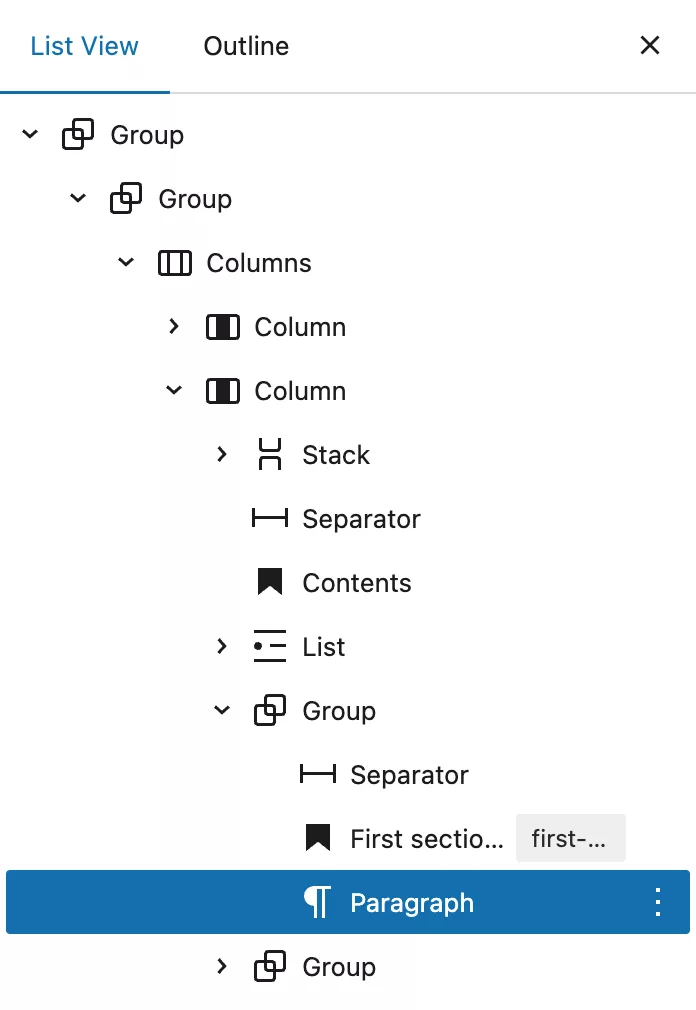
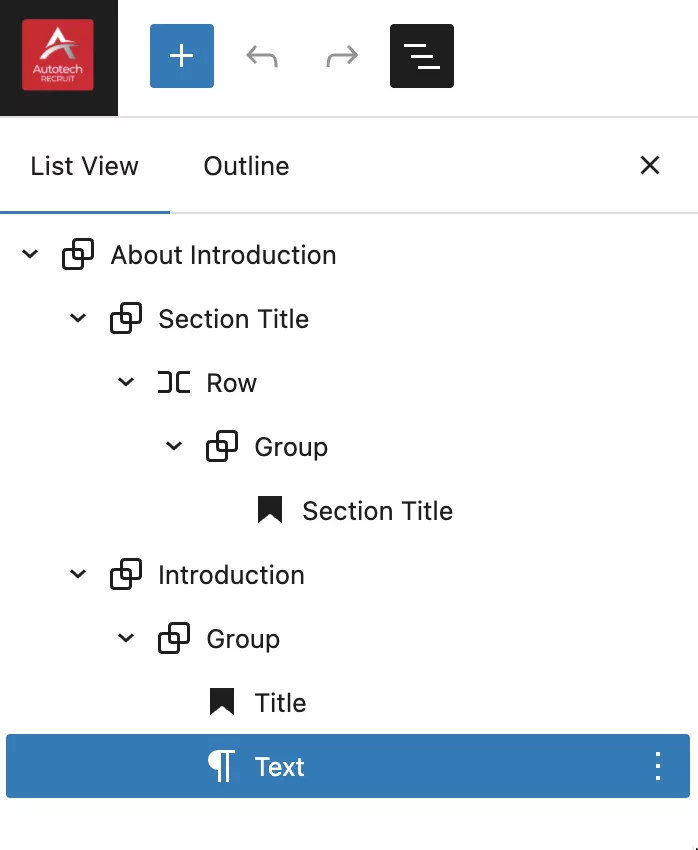
Blocks can be inspected, moved and removed via the Blocks Listview.
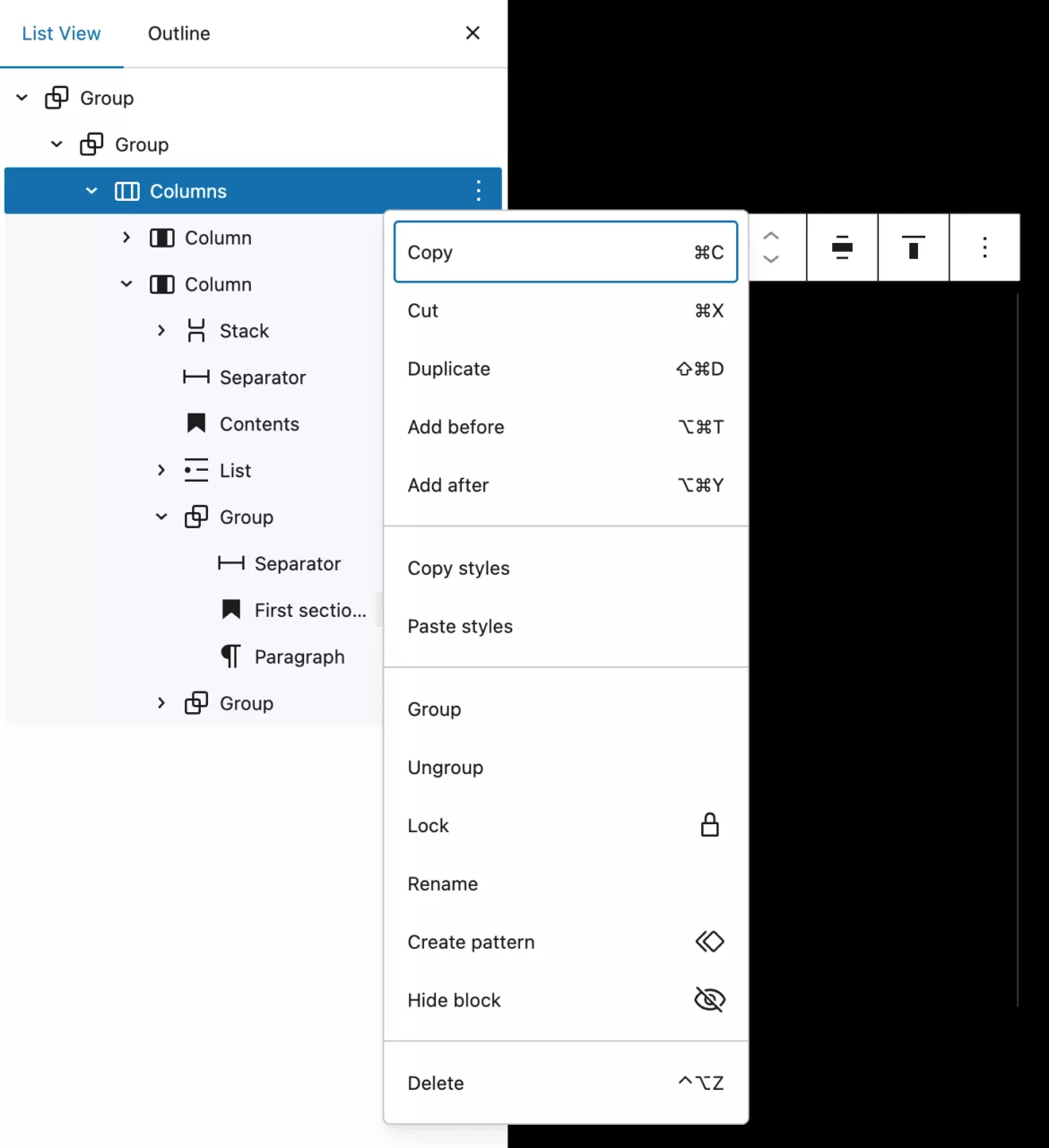
Right-clicking any block in the Inspector Listview or on page will bring up it’s contextual menu where you can run many actions on a block, like DUplicate, Group or Delete etc.
Tip!

You can easily copy and paste blocks in your page or even in another page design, just by selecting a block and using your keyboard shortcuts for Copy and Paste.

Back to contents


Common Blocks

These are the most common blocks to make up many page components and layouts:

  • Paragraph Block
  • Heading Block
  • List Block
  • Quote Block
  • Image Block
  • Video Block
  • Group Block
  • Columns Block

Paragraph Block

To add a Paragraph block, start typing or pasting some text. Each piece of text will be turned into a Paragraph block automatically.

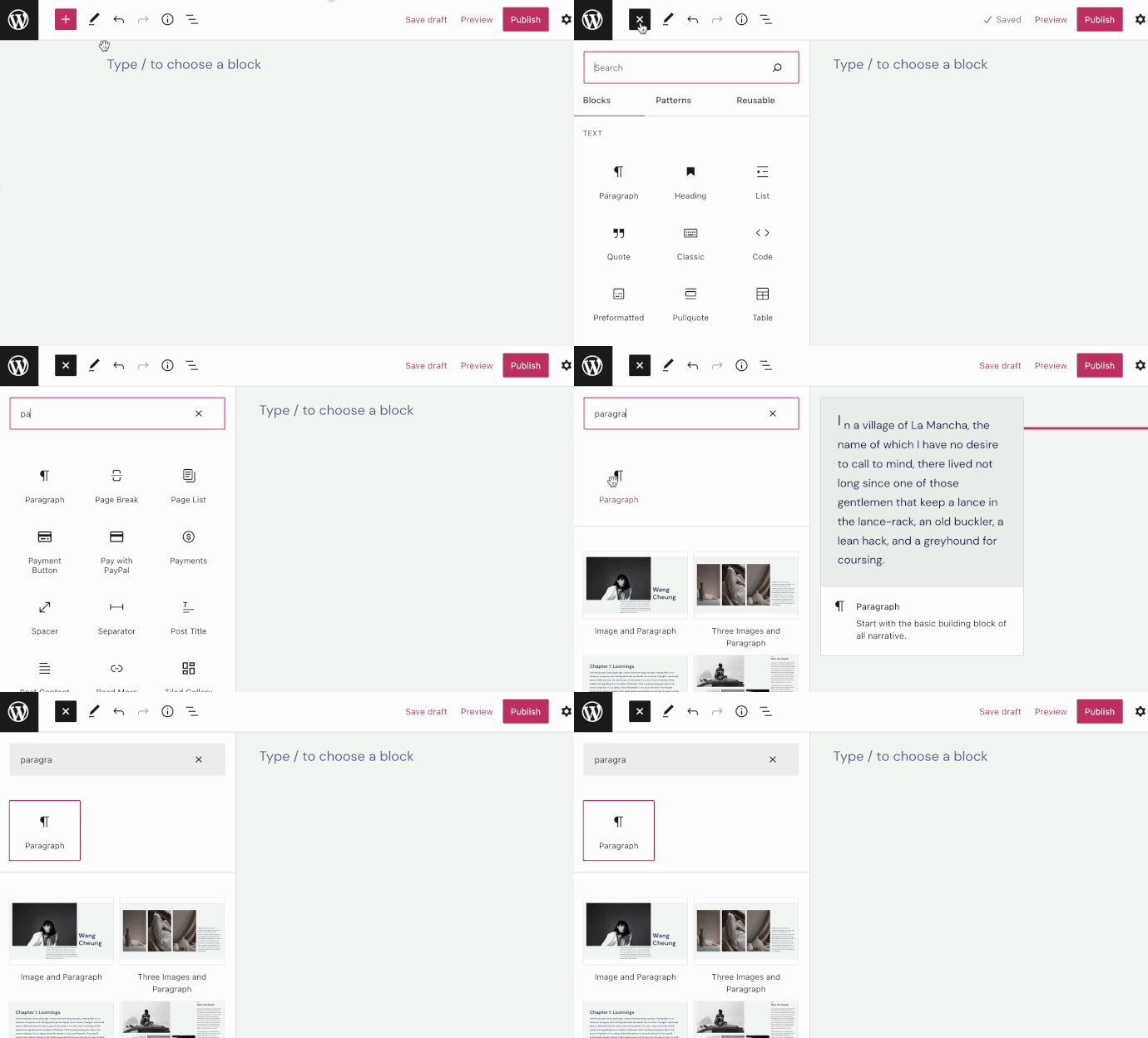
You can also click the + Block Inserter icon and search for “paragraph”. Click it to add the block to the post or page.
Read more on the Paragraph Block

Back to common blocks


Heading Block

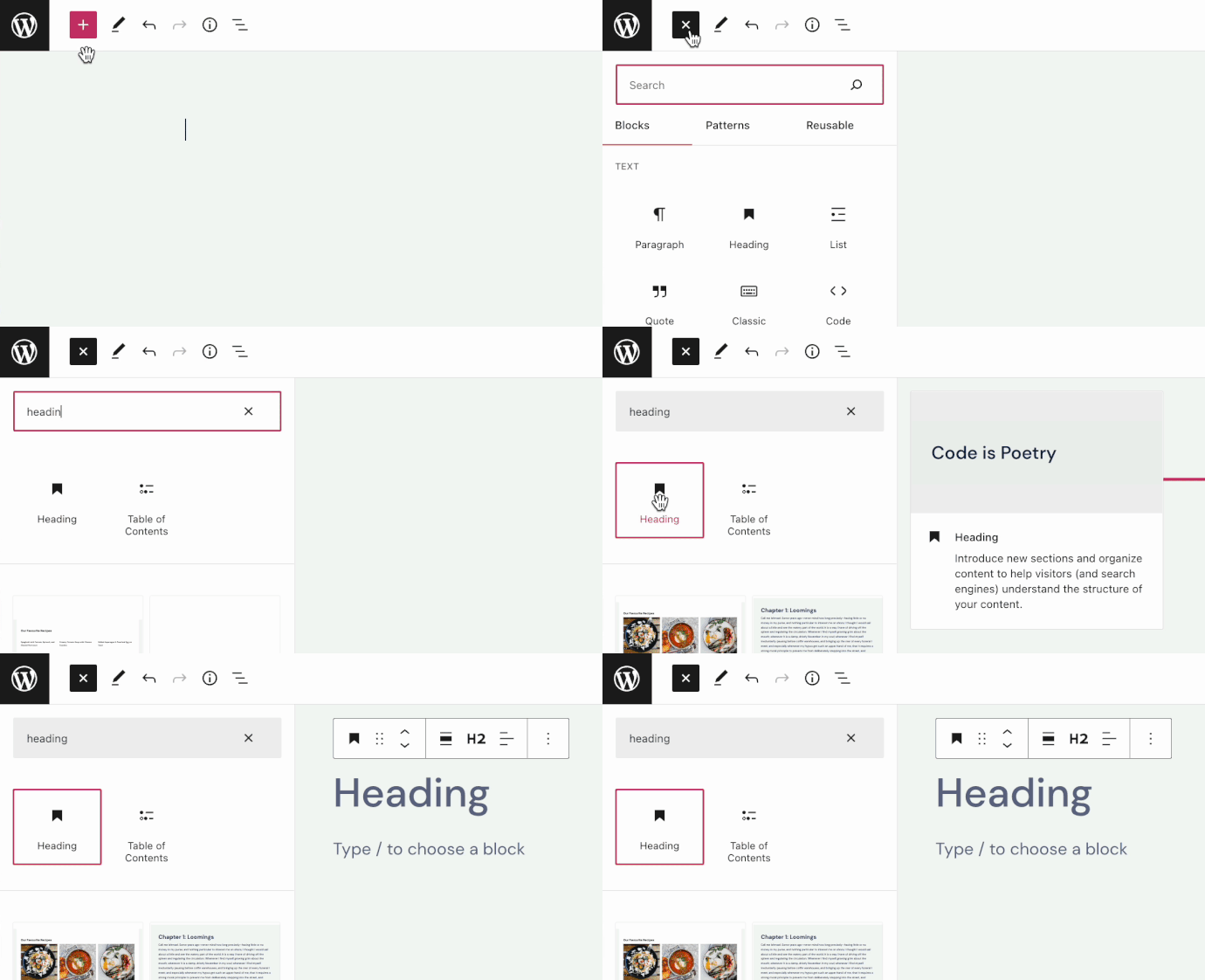
To add the Heading block, click the + Block Inserter icon and search for “heading”. Click it to add the block to the post or page.
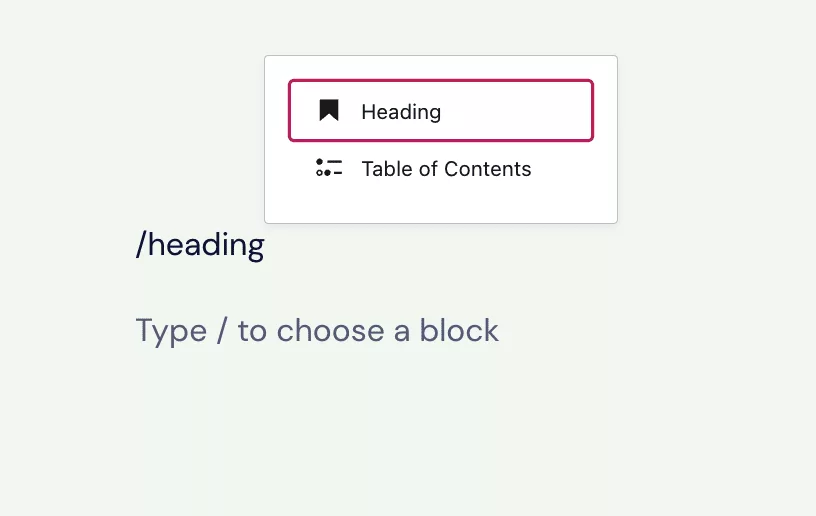
Tip: Using your keyboard, you can also type /heading on a new line and press enter to quickly add a new Heading block.
Read more on the Heading Block

Back to common blocks


List Block

To add the List block, click the + Block Inserter icon and search for “list”. Click it to add the block to the post or page.

Alternatively, you can quickly start a numbered list by typing 1. and then a space. To quickly start a bulleted list, type * or - and then a space. When typing these commands on a new line, it will automatically create a List block.
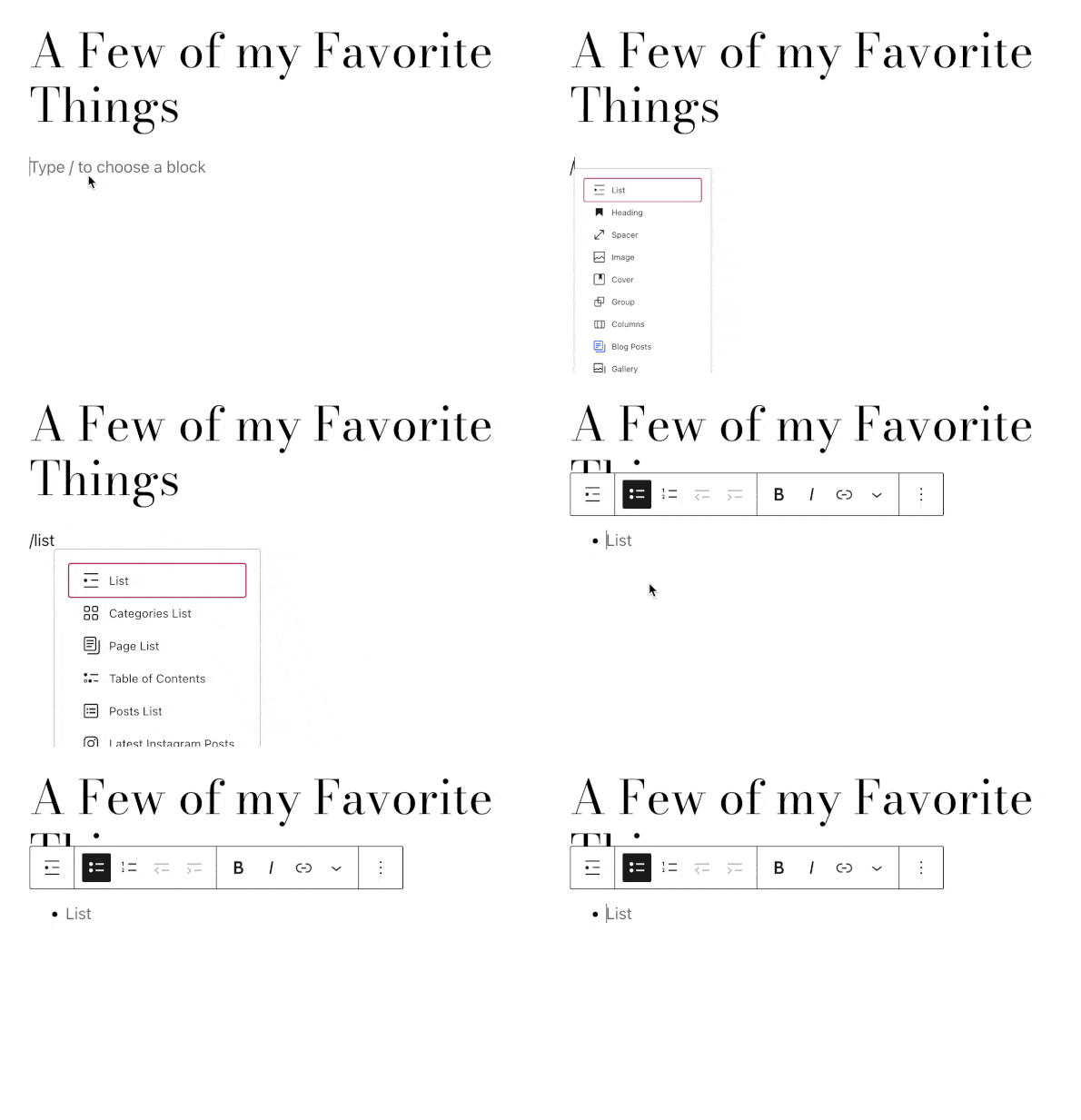
Tip: Using your keyboard, you can also type /list on a new line and press enter to quickly add a new List block.

Read more on the List Block

Back to common blocks


Quote Block

To add the Quote block, click the + Block Inserter icon and search for “quote”. Click to add the block to a page, post, or template.

Alternatively, you can quickly start a quote by typing > and then a space on a new line. It will automatically create a Quote block.

Tip: Using your keyboard, you can also type /quote on a new line and press enter to quickly add a new Quote block.

Read more on the Quote Block

Back to common blocks


Image Block

Use the Image block to insert an image onto your page or post. This guide will show you how to add and customise images on your site.

Read more on the Image Block

Back to common blocks


Video Block

Use the Video block to display video content on any post or page. This guide will show you how to add video to your site and adjust its settings.

Tip: Directly embed a YouTube video using the YouTube block

Read more on the Video Block

Back to common blocks


Group Block

The Group block brings together multiple other blocks inside one container so that you can treat them as a single unit, apply styles, and control their layout. Our guides will show you how to add and customize groups on your site.

Read more on the Group Block

Back to common blocks


Columns Block

Use the Columns block to insert text, media, and other content into up to six side-by-side columns. When used one after another, the columns create a grid effect. Our guides will show you how to create columns on a page.

Read more on the Columns Block

Back to common blocks

Autotech Recruit
  • Facebook
  • Instagram
  • YouTube
  • LinkedIn

Autotech Recruit

Autotech Recruit specialises in providing experienced vehicle technicians, MOT testers, service advisors and parts advisors on a temporary or permanent basis to the automotive aftermarket.

Trusted by a wide range of clients including dealerships, national retail groups, independent garages, and government organisations throughout the UK, we are your partner in aftermarket talent.

Autotech Recruit is part of Autotech Group, which also includes Autotech Training, Autotech Academy, and Autotech Connect.

Contact

Libra Building
Linford Wood Business Park
Sunrise Parkway
Milton Keynes
MK14 6PH

01234 240 503

hello@autotechrecruit.co.uk

Links

  • Privacy Policy
  • Cookie Policy
  • Terms and Conditions
  • Autotech Group Jobs

© 2026 Autotech Recruit Limited. Registered in England and Wales – Company Registration: 07463246 VAT Registration Number: GB110 7561 49

All Rights Reserved. Autotech Recruit is a registered trademark.
Calls may be recorded for monitoring and training purposes.

WE KEEP THE WORLD MOVING

Chat Assistant